Dixon manual
Everything on the panel, in plain words. Read it top to bottom once, or jump to the part you need.
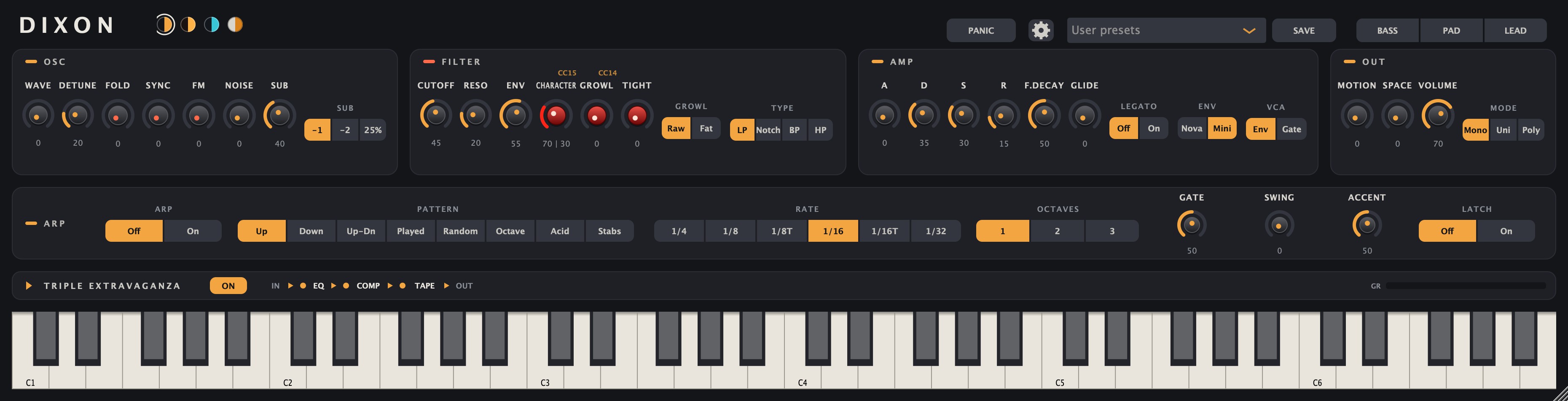
The sound runs left to right: OSC makes it, FILTER shapes its colour, AMP shapes it in time, OUT adds movement and space. ARP below plays your chords as a pattern. The Triple Extravaganza strip above the keyboard is a master chain (EQ, compressor, tape) that every sound passes through last.
Quick start
- Load Dixon on an instrument track in your DAW and play a few notes.
- Pick a starting point: BASS, PAD or LEAD in the top right corner. Each sets every knob for that kind of sound.
- Turn CUTOFF and RESO while you play. That is most of Dixon's character, right there.
- Add dirt with GROWL, or turn ARP on and pick a pattern for an instant riff.
- Keep it: click User presets, type a name and press SAVE.
Working with the panel
- Turn a knob
- Drag up or down. The number under it shows the value, 0 to 100.
- Back to default
- Double-click a knob.
- Not sure what it does?
- Hold the mouse over any control: a short tip pops up.
- MIDI Learn
- Right-click any knob or switch (Ctrl-click on a Mac trackpad), choose MIDI Learn, move a knob on your controller. A small orange CC label then shows the knob is assigned.
- Bigger or smaller
- Drag the bottom-right corner of the window, from half size up to double size.
- Colours
- The four dots next to the DIXON logo switch the colour theme. Only the look changes, never the sound.
- Keyboard
- The keys at the bottom play Dixon with the mouse, handy for a quick check without a MIDI keyboard.
- Master chain
- The Triple Extravaganza strip sits above the keyboard. Click it to open the full chain (the keyboard moves down) and click it again to close it. More under Triple Extravaganza.
Top bar

- PANIC
- Stops every note at once, sustain pedal included, and cuts what is still ringing (release, chorus, echo). For stuck notes.
- Gear
- Opens Settings: MIDI channel, pitch bend, tuning, MIDI Learn list, theme, quality.
- User presets
- Your own sounds. Pick one to load it. In the same list: delete the current preset, or Show folder to see the files (to back them up or share them).
- SAVE
- Saves the current sound under a name. Enter confirms, Esc cancels.
- BASS · PAD · LEAD
- Starting points. One click sets every knob for that kind of sound, then you keep turning. They replace what you had, so save first if you like it.
OSC — the raw sound
Two oscillators, a sub and noise. This is where the sound gets its basic shape and its teeth.
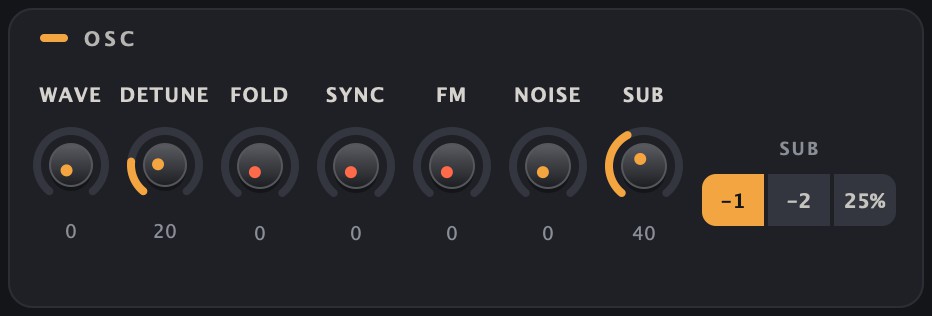
- WAVE
- Left: a saw, bright and buzzy. Turning right makes it a pulse that gets narrower: hollow, then thin and nasal.
- DETUNE
- Tunes the second oscillator away from the first (up to 30 cents). A little sounds thick and alive, a lot sounds wide and wobbly. Also spreads the voices in Uni mode.
- FOLD
- Folds the wave back on itself. Further right: more metal, glass and rasp.
- SYNC
- Hard sync: the second oscillator is forced to follow the first and its pitch sweeps on every note. The classic tearing lead.
- FM
- A third oscillator wobbles the first one very fast, strongest at the start of each note. Bells, metal, a bit of grit.
- NOISE
- Adds noise: air in a pad, breath in a lead, a click in a bass. It goes through the filter like everything else.
- SUB
- A square wave below the note, for weight. The switch next to it picks −1 (one octave down), −2 (two octaves down) or 25% (two octaves down, thinner and more nasal).
FILTER — the colour
The filter takes away the brightness. Where it sits, how hard it rings and how it moves on each note make the difference between a soft bass and a screaming acid line.
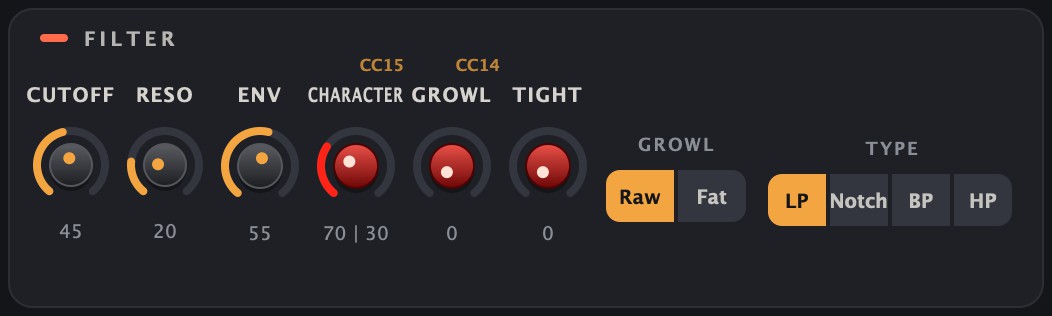
- CUTOFF
- How open the filter is. Left: dark and muffled. Right: bright.
- RESO
- Resonance: a ringing peak at the cutoff. That is the "squelch". With CHARACTER turned to Mini and RESO at maximum the filter starts to sing on its own.
- ENV
- How far each note opens the filter and lets it close again. 0: the filter stays put. High: a "wow" on every note.
- CHARACTER
- Two filters in one. Left, Nova: gentle and smooth. Right, Mini: sharper, steeper and a bit saturated. In between you get a blend; the readout shows how much of each (Nova | Mini).
- GROWL
- Feeds the sound back into the filter through a drive, like a cable from the output to the input. Bite and dirt; with RESO up it really growls.
- TIGHT
- Growl tends to hold the sound up, so short notes ring on. TIGHT brings back the note's shape: left, Growl holds; right, notes stop when they should. Does nothing without GROWL.
- GROWL Raw · Fat
- Raw: sharp; with a lot of Growl it drops an octave and snarls. Fat: darker, thicker and louder, stays on the note's pitch.
- TYPE
- The shape of the Nova filter: LP removes highs (the usual), Notch cuts a band in the middle (hollow, phaser-like with RESO), BP keeps only the middle (thin, nasal), HP removes lows. Works on the Nova side of CHARACTER; at full Mini it is always LP.
AMP — the shape in time
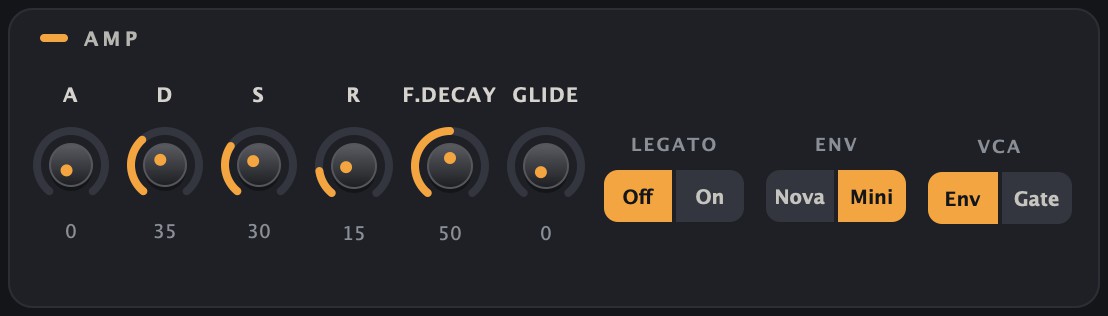
How each note starts, holds and ends, for both the volume and the filter.
- A · D · S · R
- Attack: how fast the note comes in (a hit or a slow fade-in). Decay: how fast it falls after the hit. Sustain: the level it holds while you keep the key down. Release: how long it fades after you let go.
- F.DECAY
- How fast the filter closes, separately from the volume. Centre: same as D. Left: a short click on the filter (plucks). Right: the filter closes slowly (sweeps).
- GLIDE
- The pitch slides from one note to the next. Higher: a slower slide.
- LEGATO
- Off: every note starts fresh, with its own attack. On: a note played while you still hold the previous one carries on without a new attack, so the line flows. Together with GLIDE, that is the classic slide.
- ENV Nova · Mini
- Two envelope characters. Nova: smooth and soft. Mini: very fast, with punch. Basses usually want Mini.
- VCA Env · Gate
- Env: the volume follows A D S R. Gate: full volume while you hold the key, like an organ; the envelope then only moves the filter. Works with the Mini envelope.
OUT — movement and space
- MOTION
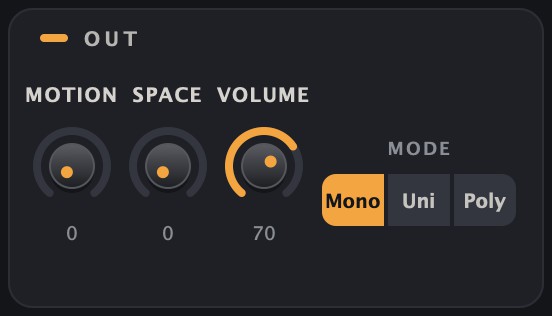
- Slow movement: the pulse width drifts, a light vibrato and some stereo width. Pads and leads come alive.
- SPACE
- One knob for the room: first a chorus, then a deeper chorus, then more and more echo.
- VOLUME
- Output level.
- MODE
- Mono: one note at a time, the tight bass. Uni: one note, several detuned voices stacked (DETUNE sets the spread), wide and huge. Poly: chords.
ARP — the riff machine
Hold a chord, and the arpeggiator plays it as a pattern in time with your DAW (120 BPM when the DAW is stopped).

- ARP
- On or off.
- PATTERN
- Up, Down, Up-Dn: through the held notes. Played: in the order you pressed them. Random: random notes and accents. Octave: a bass pulse, every second step an octave up. Acid: a 16-step line with rests, accents, octave jumps and slides, from whatever you hold. Stabs: the whole chord in a syncopated rhythm (use Poly or Uni).
- RATE
- Step length, from 1/4 to 1/32. T means triplets.
- OCTAVES
- The pattern repeats 1, 2 or 3 octaves up.
- GATE
- How long each note is: short and plucky on the left, tied together on the right (in Mono with GLIDE it slides).
- SWING
- Delays every second step: from straight to a heavy shuffle.
- ACCENT
- How much accented steps stand out: louder and with the filter opened. 0: all steps equal.
- LATCH
- On: the pattern keeps going after you let go, and a new chord replaces it. The sustain pedal holds the notes too.
TRIPLE EXTRAVAGANZA — the master chain
Three studio-style processors in a row, built into Dixon and applied to everything it plays: a passive EQ, an optical compressor and tape. It is on when you first load Dixon.

The strip is always there, above the keyboard. It shows the chain at a glance: the switch for the whole chain, the three blocks in the order the sound passes through them (a dot lights when a block works) and, at the far right, how much the compressor is pressing the sound down. Click the strip to open the full chain.

- ON (strip)
- The whole chain, on or off. Off: Dixon sounds as it does without the chain.
- ON (each block)
- Switches that one block off and on. A block that is off lets the sound through untouched.
- < and >
- Move a block one place to the left or right. The sound passes through the blocks from left to right, and the order changes the result: tape before the compressor sounds different from tape after it. Six orders are possible.
1 PASSIVE EQ
- LOW FREQ · LOW BOOST · LOW ATTEN
- Pick a low frequency (20, 30, 60 or 100 Hz), then boost it, cut it, or both: turning BOOST and ATTEN up together at the same frequency gives a fuller, tighter bottom than either alone.
- HIGH FREQ · HIGH BOOST · BANDWIDTH
- Pick a high frequency (3, 4, 5, 8, 10, 12 or 16 kHz) and boost it. BANDWIDTH sets how wide the boost is.
- ATTEN FREQ · HIGH ATTEN
- Cuts the top end from 5, 10 or 20 kHz: takes off the fizz without dulling everything.
2 OPTO COMP
- REDUCTION
- How hard the compressor squeezes. It reacts smoothly and lets go slowly, so the sound gets steadier without pumping. The GR bar under the knobs shows the reduction, up to 20 dB.
- GAIN
- Makes up the level lost to compression. At the starting position (23) the chain is as loud as without it; turn it up to bring the compressed sound forward.
- MODE
- Compress: gentle and musical. Limit: firmer, for peaks you want held down.
3 TAPE
- INPUT
- How hard the sound hits the tape, from −12 to +24 dB. Low: clean. High: warmth and soft saturation, and the lows thicken.
- OUTPUT
- The level after the tape, from −24 to +12 dB. Use it to take the level back down when INPUT is high.
- SPEED
- 15 IPS: clean and open. 7.5 IPS: softer on top, with more tape character.
- EQ
- NAB or CCIR: the two standard tape equalisations. They differ slightly in how lows and highs are balanced.
- Moving a block with < or > and changing the tape's SPEED or EQ mute the sound for about 35 milliseconds while the chain re-arranges itself. Set them up before you play; they are not for automation. The knobs and the ON switches can be moved any time.
- The chain's settings are saved with your user presets and your DAW project; the open or closed state of the strip is saved with the project. The BASS, PAD and LEAD starting points do not touch the chain. Presets saved before the chain existed load it with its default settings (chain on).
- Dixon reports the chain's small delay (about 1.5 ms) to your DAW, so it stays in time. It uses roughly 2 to 4 percent of one processor core.
- Boosts and a high INPUT can push the level above full scale. Turn OUTPUT or VOLUME down if your DAW shows clipping.
Settings and MIDI
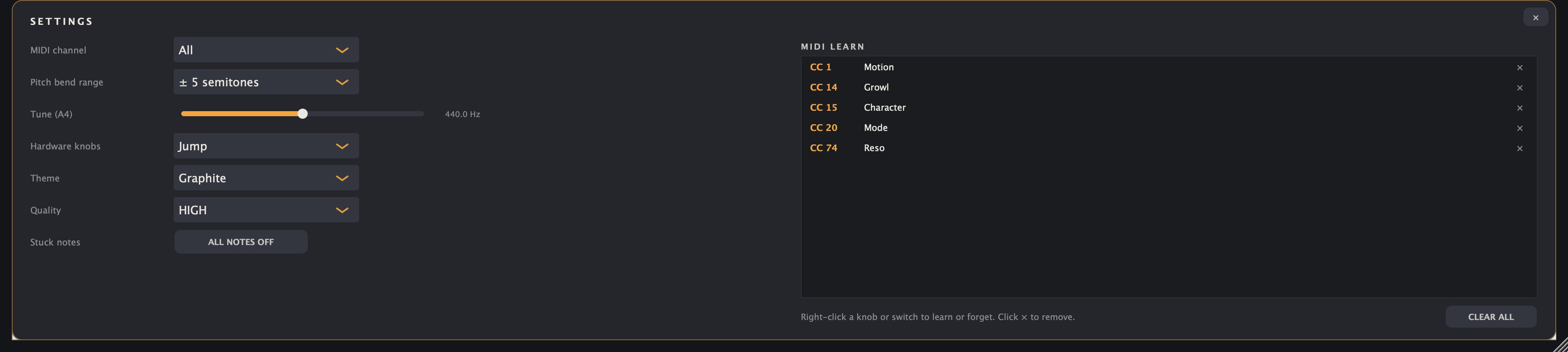
Click the gear in the top bar. Close with × in the corner.
- MIDI channel
- Which channel Dixon listens to. All: every channel.
- Pitch bend range
- How far the pitch wheel bends: ±2, 5, 7, 12 or 24 semitones.
- Tune (A4)
- Master tuning. Double-click for 440 Hz.
- Hardware knobs
- When a knob on your controller doesn't match the panel. Jump: the value jumps at once. Pickup: nothing happens until your knob passes the current value, so no jumps.
- Theme
- The panel colours, same as the dots by the logo.
- Quality
- LOW is lighter on the computer and sounds the same at 44.1 and 48 kHz. HIGH uses 2× oversampling everywhere, for fast computers and high sample rates.
- ALL NOTES OFF
- The same as PANIC.
- MIDI LEARN list
- Every knob you assigned and its CC number. Click × to remove one, CLEAR ALL to remove them all.
Good to know: MIDI channel, bend, tuning and your CC assignments are saved with your DAW project, and the last ones you set become the default for every new Dixon.
Sound recipes
Starting points to learn the panel by ear. Numbers are rough; turn until it sounds right.
Acid line
- Click BASS, MODE Mono.
- CHARACTER to the right (Mini), RESO about 70, ENV about 60.
- ARP On, PATTERN Acid, RATE 1/16, ACCENT up.
- Hold one or two notes and ride CUTOFF.
Big reese
- Click BASS, MODE Uni.
- DETUNE about 50, SUB up for weight.
- GROWL up with Fat, CUTOFF fairly low.
- A touch of MOTION for movement.
Soft pad
- Click PAD (Poly, slow attack, chorus).
- Add NOISE for air, MOTION for life.
- Longer R for the tail, SPACE up for echo.
Screaming lead
- Click LEAD.
- SYNC up for the tear, a little FM for bite.
- LEAD already has LEGATO on and some GLIDE: play overlapping notes and they slide.
Questions
- A note keeps sounding.
- Press PANIC. It also clears the sustain pedal and the echo tail.
- Short notes ring on for too long.
- That is GROWL holding the sound. Turn TIGHT to the right.
- Dixon sounds different from before.
- The Triple Extravaganza chain is on by default. Switch it off with the ON next to its name in the strip, or open it and set each block to taste.
- The sound cuts out for a moment when I click < or >.
- That is meant: the chain mutes briefly while it re-arranges. It does so without a click.
- The ARP is on but nothing plays.
- It needs held notes: hold a chord, or turn LATCH on. It follows your DAW's tempo.
- TYPE does nothing.
- TYPE works on the Nova filter. Turn CHARACTER to the left.
- Can I play chords?
- Yes, switch MODE to Poly. Mono and Uni play one note at a time.
- Where are my presets?
- Open User presets and choose Show folder. Copy the files to another computer the same way.
- The demo went silent.
- The 14 days are over. Your projects open unchanged in the full version.