
Emilie 8 manual
From a few notes to a track idea, in plain words. Read it top to bottom once, or jump to the part you need.
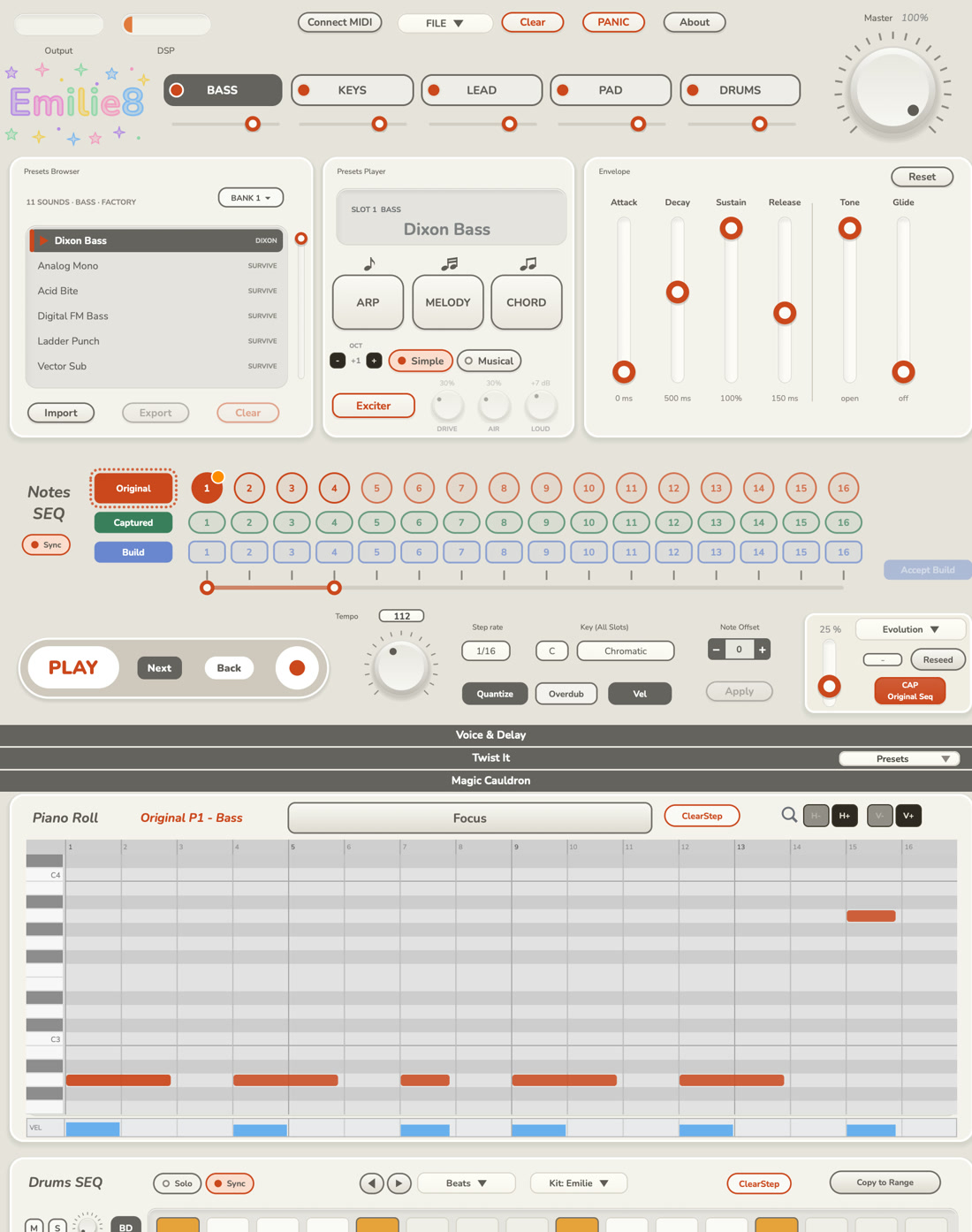
Emilie has four slots (BASS, KEYS, LEAD, PAD) and DRUMS. Pick a slot, pick its sound, write a few notes in the piano roll. Then let the idea tools work on a copy: Twist It, Magic Cauldron and Evolution. Your own notes always stay safe in Original.
Quick start
- Click BASS in the slot row and pick a sound in the Presets Browser. ARP, MELODY or CHORD plays a quick preview of it.
- Write a few notes: click Captured, then click notes into the piano roll. Or click Original, arm REC and play them on your keyboard.
- Add drums: in Drums SEQ open Beats and pick a style. Press PLAY.
- Twist it: open Twist It and press Surprise Me until you hear something you like. Undo steps back.
- Do the same for KEYS, LEAD and PAD, then save with FILE → Save. Or drag a slot into your DAW as MIDI.
Top bar and slots

- Connect MIDI
- Your sound card and MIDI inputs. A MIDI keyboard you plug in is switched on by itself.
- FILE
- New, Open, Save, Save As, Open Recent, and MIDI import and export. Your work is also kept between starts, so closing Emilie loses nothing.
- Clear
- Pick what goes back to the start: the patterns, the slot's sound, the drums, the automation, or everything. Your saved presets stay.
- PANIC
- Stops every sound at once.
- BASS · KEYS · LEAD · PAD
- Click a slot to work on it: the sound, the roll and the idea tools all follow it. The lamp turns the slot on or off, the slider under it is its volume. Drag the slot into your DAW to drop its notes there as MIDI.
- DRUMS
- The same for the drums: lamp on or off, slider for volume, drag for MIDI.
- Master
- The overall volume (double-click: 100%).
Sound — browser, player, envelope
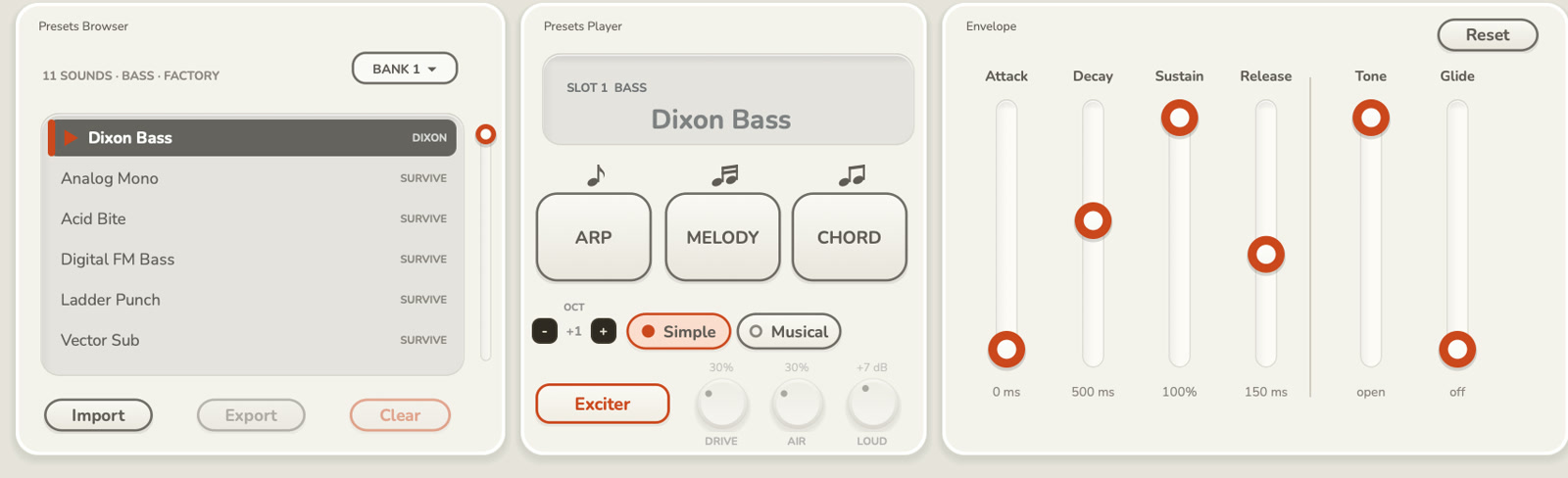
Presets Browser
- BANK
- Which sounds the list shows: 1 is the factory bank, then Dixon, Stein, Survive and any banks you import. The list shows the sounds that fit the slot.
- The list
- Click a sound to load it into the slot.
- Import · Export · Clear
- Bring in a bank of sounds (.e8rom), save the bank shown to a file to share it, or remove an imported bank (click twice). The banks Emilie comes with always stay.
Presets Player — hear a sound before you write anything.
- ARP · MELODY · CHORD
- Plays the sound as a short arpeggio, a melody or chords. Click again to stop.
- Simple · Musical
- A plain test, or a more musical phrase.
- OCT − +
- The preview an octave lower or higher. The sound itself does not change.
- Exciter
- For a sound that is too quiet or dull: louder, fuller, brighter. DRIVE warms it up and then makes it gritty, AIR adds sparkle on top, LOUD pushes it into a limiter (it never goes over −1 dB).
Envelope — the shape of every note.
- Attack · Decay · Sustain · Release
- How fast the note rises, how far it falls, the level while you hold the key, and how long it rings after you let go.
- Tone
- Darker down, the sound's own brightness at the top.
- Glide
- Notes slide into each other.
- Reset
- All six back to how the sound came.
Original, Captured, Build
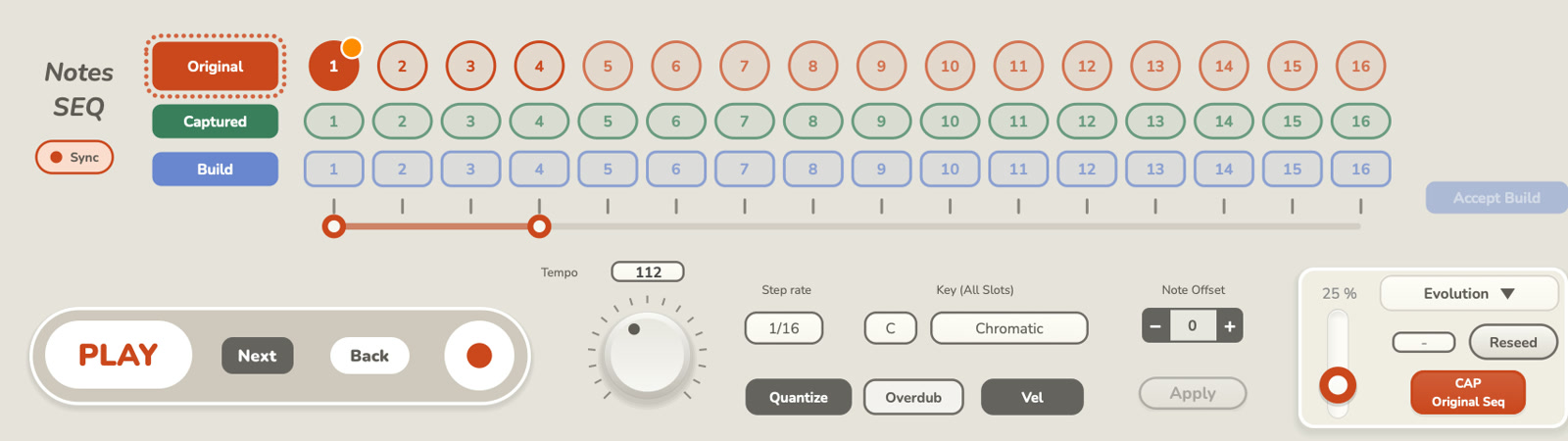
Every slot has 16 patterns in three rows. This is what keeps your ideas safe: the tools never touch Original.
- Original
- What you played or recorded. REC only writes here.
- Captured
- A copy to experiment on. Twist It, Magic Cauldron and Evolution work here. You can also draw notes freely.
- Build
- Your arrangement: drag a pattern from Original or Captured onto a Build place. Accept Build makes it your new Original.
- Click a row's name
- That row plays and shows. Click a number to pick that pattern. Drag one Original pattern onto another to swap them.
- Loop range
- Drag the two dots under the numbers to loop several patterns; they play in turn. Double-click: all 16.
- Sync
- The piano roll follows the pattern that is playing.
Play and record
- PLAY · Next · Back
- Start and stop; jump to the next or the previous pattern.
- ● (REC)
- Records what you play into Original. Click Original first.
- Tempo
- The speed, for all slots and the drums.
- Step rate
- How long one step is: 1/16 for normal patterns, 1/8 for half speed, 1/32 for double, T for triplets.
- Key (All Slots)
- The key and scale of the whole project. New and moved notes snap to it, so nothing sounds wrong. Notes outside it show red. Chromatic: no rules.
- Note Offset · Apply
- Moves the pattern up or down in pitch. Apply makes the move permanent.
- Quantize
- Recorded notes land neatly on the steps.
- Overdub · Replace
- Recording adds to what is there, or writes over it.
- Vel
- On: notes follow how hard you play. Off: every note at full level.
Voice & Delay

Click the bar to open it. The settings belong to the slot you picked.
- POLY · UNISON
- Poly plays chords; off, it plays one note at a time. Unison stacks voices on each key for a fatter sound.
- CHORUS I · II
- The classic Juno chorus: I slow and wide, II deeper and faster, both together for a third kind.
- DELAY
- An echo. TIME, FEEDBACK (how many repeats), STEREO (0 centre, 100 ping-pong left and right), MIX. With SYNC, TIME picks a note value that follows the tempo.
- REVERB
- The slot's own room: SIZE, DECAY, MIX. It stays when you load another sound.
Twist It — variations on your notes

Opening Twist It copies the pattern to Captured and works on that copy. Your Original stays as it was.
- Surprise Me
- A new twist of the pattern. Press it again and again. Hold the mouse over it to read what it changed.
- Presets
- On the bar: ready settings from gentle to wild. Each pick is one step, so they stack.
- Slots
- Twist It listens to the other slots: changed notes fit the chords there, and the bass lines up with the kick. Off: the slot alone.
- Rhythm · Melody · Motif
- What may change: when the notes play, which notes they are, or the little figure that repeats. The box next to each picks the method (Auto lets Emilie choose).
- Amount
- How far the twist goes.
- Try: Again · Keep · Reset
- Again: another take. Keep: this one stays and the next twist starts from it. Reset: back to the captured pattern.
- Keep: Pitch · Contour · Range · Ends
- What must not change: the notes used, the up-and-down shape, the lowest and highest note, the first and last note.
- Seed · S
- The number behind the randomness. S picks a new one: same settings, another result.
- Undo
- Steps back the last change, whichever tool made it.
- Memory 1–6
- Click an empty one to store what plays now. Click a stored one to bring it back; hold it to listen. Shift-click overwrites.
- DIV 2 · 3 · 4
- Cuts the space between notes into 2, 3 or 4 notes, for rolls and rattles.
- Rand 1–4
- That many notes, picked at random, get another note from the pattern. Rhythm stays. Press again for a new draw.
- Density
- How many of the notes play. Lower it to thin out a busy line.
Magic Cauldron

The playful way to twist. Every ingredient is a small recipe of changes. Throw up to five in the pot and the Captured pattern is cooked with them, in that order: another order, another dish.
- Throw in
- Drag an ingredient into the pot, or just click it. Click it again (or its chip in the pot) to take it out.
- Ingredients
- Hold the mouse over one to read what it does. A few examples: Honey makes notes longer and shorter, Chili cuts every note in two, Moonwater plays the line backwards and upside down, Thunder adds a softer echo to every note, Wine grows a new melody from your patterns.
- STIR
- Another take of the same mix.
- EMPTY
- Everything out: the pattern as it was before.
- KEEP
- The dish stays and the pot is empty again, ready to cook on top of it.
- UNDO
- One step back (the same Undo as Twist It).
Evolution — one idea into sixteen
The small card next to the settings turns your loop range into a developing part.
- CAP Original Seq
- The first pattern of the loop range is your motif and stays as it is. Every next pattern becomes a variation of the one before, written into Captured.
- Amount (%)
- How much each pattern changes from the previous one.
- Evolution menu
- What develops (the pattern, the drums) and the shape of the energy and groove over the range: flat, rising, falling or an arch.
- Reseed
- A different development next time you press.
Draw 2–4 notes in Original pattern 1, set the loop range to 1–8 and press CAP Original Seq: eight bars that grow out of your idea.
Piano roll
- Write notes
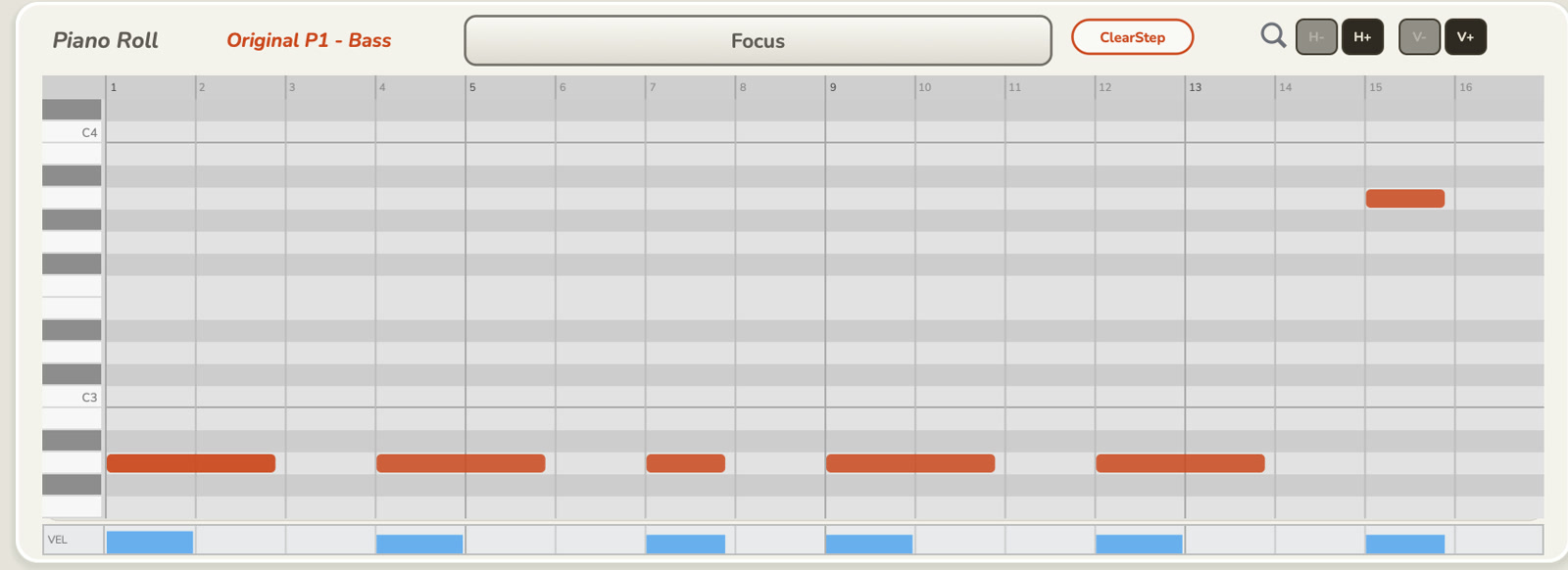
- Click to add, drag to move, drag the end to change the length (down to a quarter step). Right-click or double-click removes. In Original you can move notes; to add new ones there, arm REC.
- Focus
- Centres the view on the pattern's notes.
- ClearStep
- Empties the pattern.
- H− H+ · V− V+
- Zoom: fewer steps in view, or taller rows that are easier to grab.
- VEL
- The strip under the roll: click it, then drag up or down over a step to make that note louder or softer.
Drums
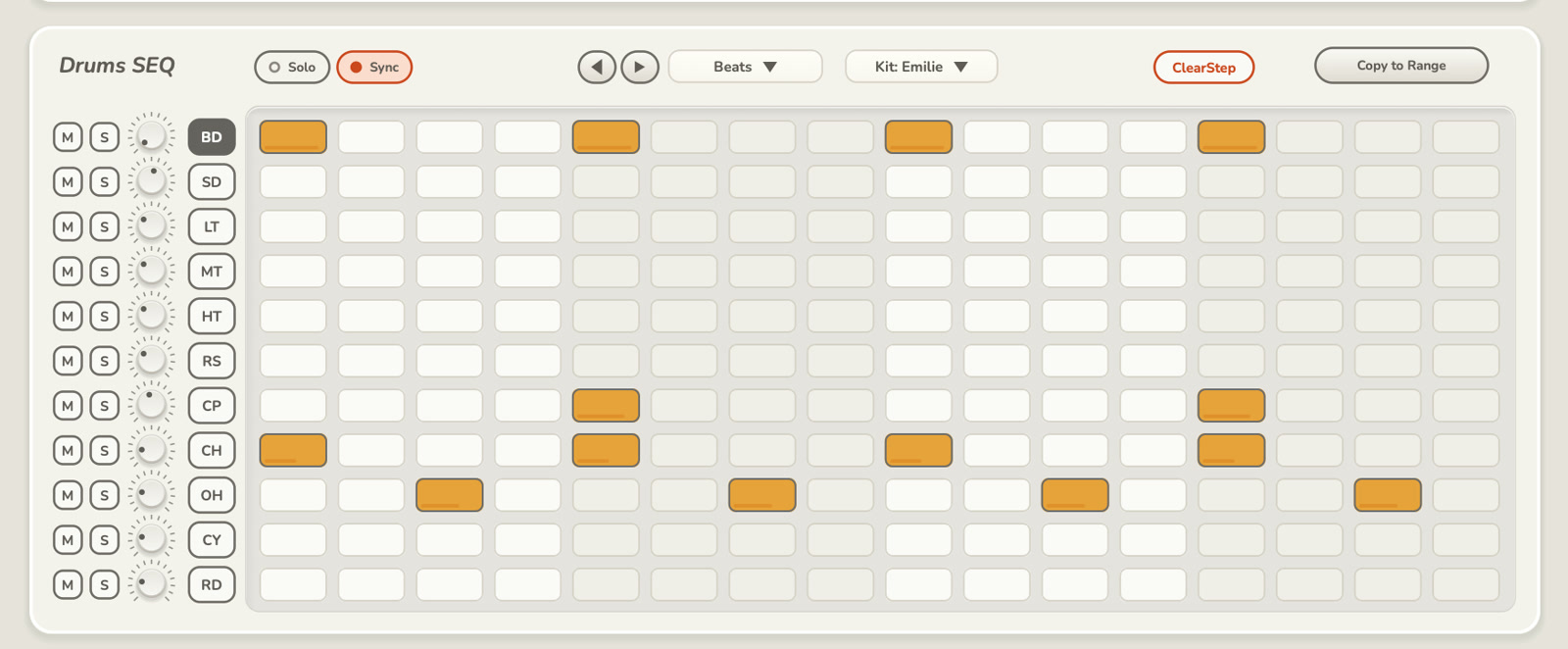
- The grid
- Eleven drums, from BD (kick) to RD (ride), 16 steps. Click to add a hit, double-click to remove. Each row has M (mute), S (solo) and its level.
- Beats · ◀ ▶
- A ready beat by style, with fills. The arrows step through them.
- Kit
- A whole drum kit. Your patterns stay.
- Solo · Sync
- Only the drums play; the grid follows the playing pattern.
- ClearStep · Copy to Range
- Empty this pattern's drums, or copy them into every pattern of the loop range.
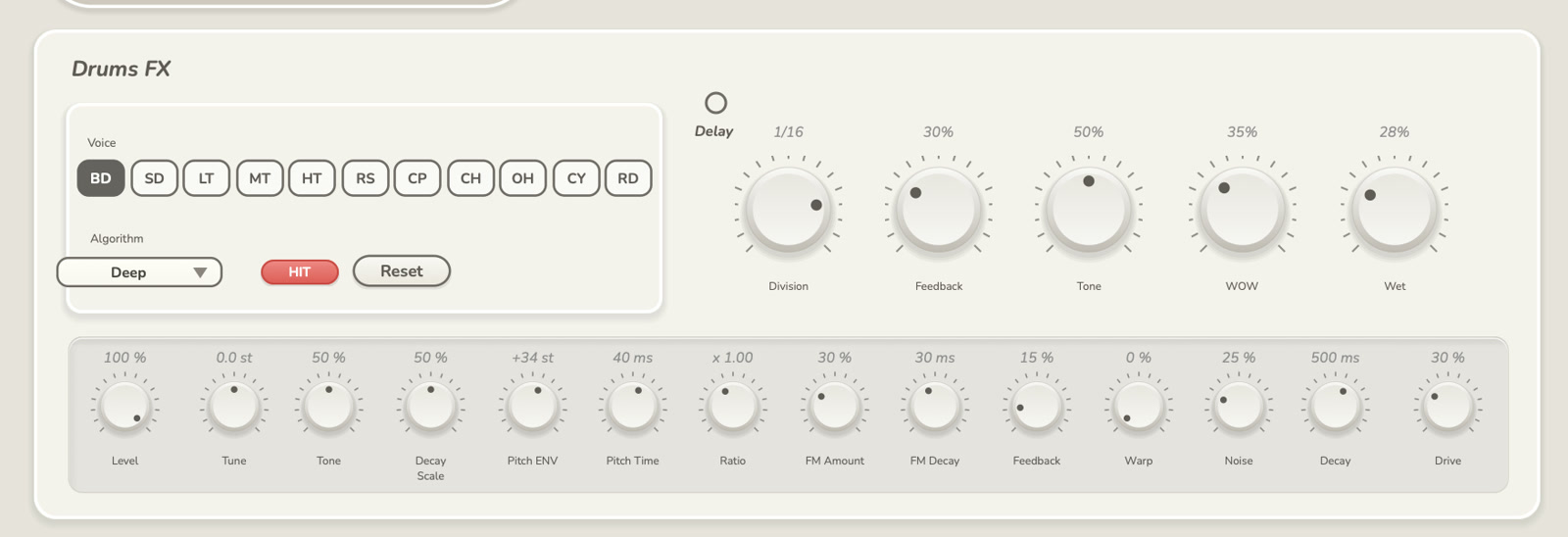
- Voice · Algorithm · HIT
- Pick a drum, its kind of sound (Deep, Clang, Ring, Crush), and HIT to hear it.
- The knobs below
- Shape that drum: level, tune, tone, length, a pitch drop at the start, metallic FM colour, noise and drive. Reset brings it back.
- Delay
- An echo for the drums with tape wobble: DIVISION, FEEDBACK, TONE, WOW, WET.
Keyboard

- Keys
- Play the picked slot with the mouse, your computer keyboard or a MIDI keyboard.
- OCT − +
- The keyboard (and the computer keys) an octave down or up.
- Modulation · Pitch Bend
- The wheels, for players without a MIDI keyboard. Pitch bend springs back to the centre.
Recipes
Quick ways to get from nothing to an idea.
From three notes
- BASS, Captured, three notes in the roll.
- Twist It: Surprise Me until it grooves.
- Keep it in Memory 1, try more, compare.
Matching parts
- Write the bass first.
- Pick LEAD, turn Slots on in Twist It.
- Twist the lead: it lands on the bass's chords.
Busy to sparse
- DIV 3 on a simple line for rolls.
- Density about 60 to thin it out again.
- Undo if it goes too far.
Cook it
- Open Magic Cauldron.
- Throw in Honey, then Thunder.
- STIR for another take, KEEP when it is good.
Questions
- I can't add notes in the roll.
- On Original you can only move notes. Click Captured to draw freely, or arm REC to write into Original.
- Twist It buttons are grey.
- Twist It works on Captured, and the pattern needs notes. Click Captured or fold Twist It and open it again.
- Did the tools change my notes?
- No. Original stays as it was; only Captured and Build change, until you press Accept Build.
- Some notes are red.
- They are outside the project's key. Leave them, or use scale-to-grid to move them in.
- How do I get it into my DAW?
- Drag a slot (or DRUMS) from the top bar into your DAW, or use FILE → Export MIDI.
- Where did my work go?
- It is kept between starts. Save it with FILE to have it as a project.
- The demo went silent.
- The 14 days are over. Your projects open unchanged in the full version.