Mike manual
From the first sound to a finished WAV, in plain words. Read it top to bottom once, or jump to the part you need.
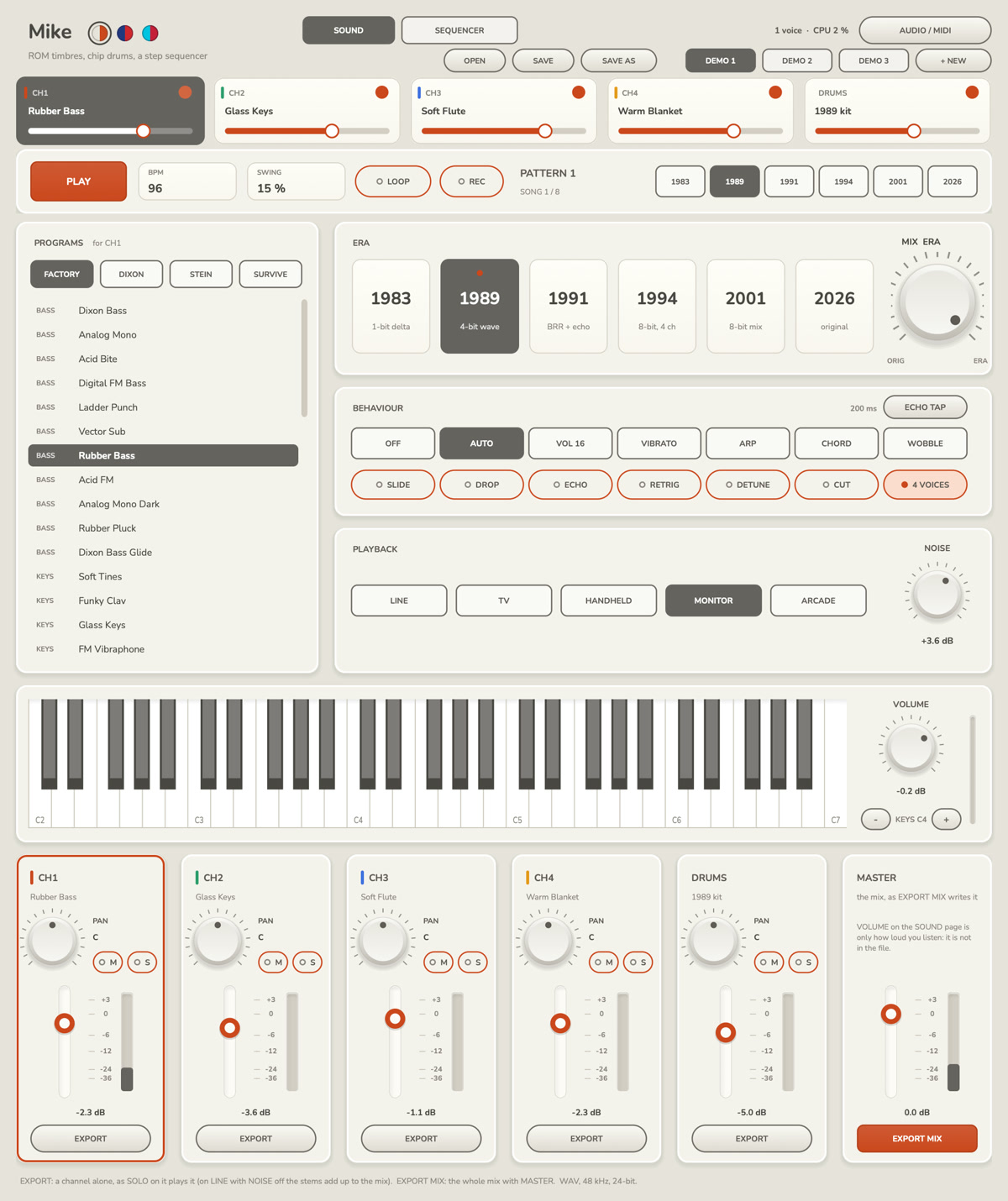
Mike has four melody channels and drums. On the SOUND page you pick each channel's sound, the ERA (which old machine plays it), its BEHAVIOUR and the speaker it comes out of. On the SEQUENCER page you write the notes and build the song. The MIXER at the bottom balances it and exports it.
Quick start
- Open DEMO 1 (top right) and press PLAY or the space bar. Now click the ERA buttons 1983 … 2026 while it plays: the same song, six different machines.
- Start your own with + NEW. Click a channel in the strip (CH1 … CH4, DRUMS) and pick its sound in PROGRAMS.
- Go to SEQUENCER and click notes into the grid, or press RAND for a ready line in the key and scale.
- Make the song: + NEW or COPY in SONG adds patterns, and they play one after another.
- Balance and export in the mixer: EXPORT MIX writes the whole song as a WAV. Save the project with Cmd-S.
Top bar and channels
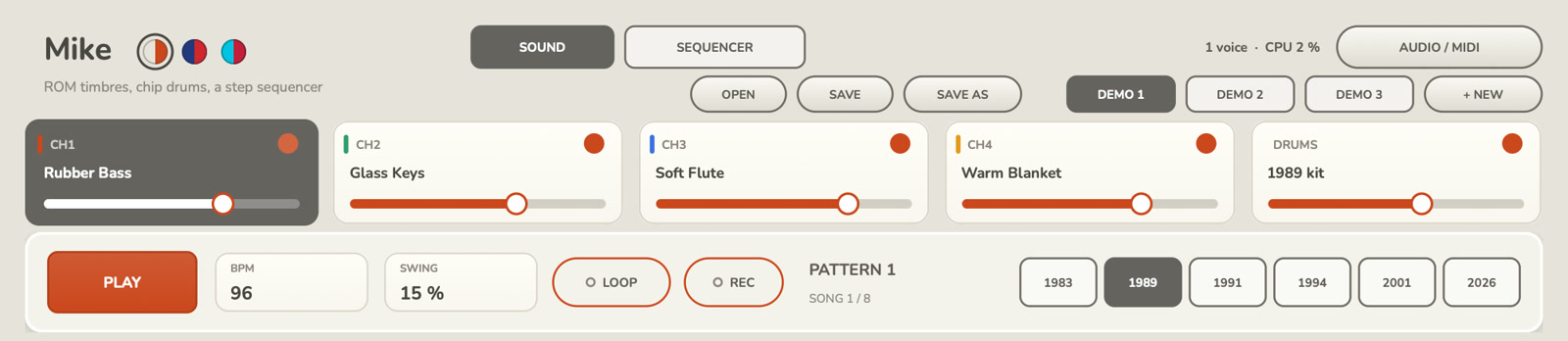
- SOUND · SEQUENCER
- The two pages. The channel strip, the transport and the mixer are on both.
- Colour dots
- Next to the name: switch the colour theme. Only the look changes.
- OPEN · SAVE · SAVE AS
- Your songs as .mike project files (Cmd-O, Cmd-S, Cmd-Shift-S). A project keeps everything: sounds, era, notes, song, mixer.
- DEMO 1 · 2 · 3
- Three finished songs to play with and learn from.
- + NEW
- An empty song with four default sounds.
- AUDIO / MIDI
- Your sound card and the MIDI keyboard. Next to it Mike shows how many voices play and how busy the computer is.
- Channel strip
- CH1 to CH4 play melodies, DRUMS plays the chip drums. Click a channel to work on it: PROGRAMS, BEHAVIOUR, the keyboard and the editor all follow the one picked. The slider is its volume (double-click: 0 dB), the dot mutes it.
Transport
- PLAY
- Starts and stops the song (also the space bar). It starts from the pattern chosen in SONG.
- BPM · SWING
- Tempo, and how much every second sixteenth is pushed late. A little swing makes a beat bounce.
- LOOP
- Plays only the chosen pattern, again and again, while you work on it. Off: the song from that pattern on.
- REC
- Writes what you play into the picked channel. While it plays: in real time, to the nearest sixteenth, as long as you hold the key. Stopped: step by step at the blue cursor, which moves on with each key (a chord counts when you let go of the last key).
- PATTERN · SONG
- Which pattern you are on, and its place in the song.
- 1983 … 2026
- The ERA, also here so you can switch it from the SEQUENCER page. See ERA.
Programs — the sounds
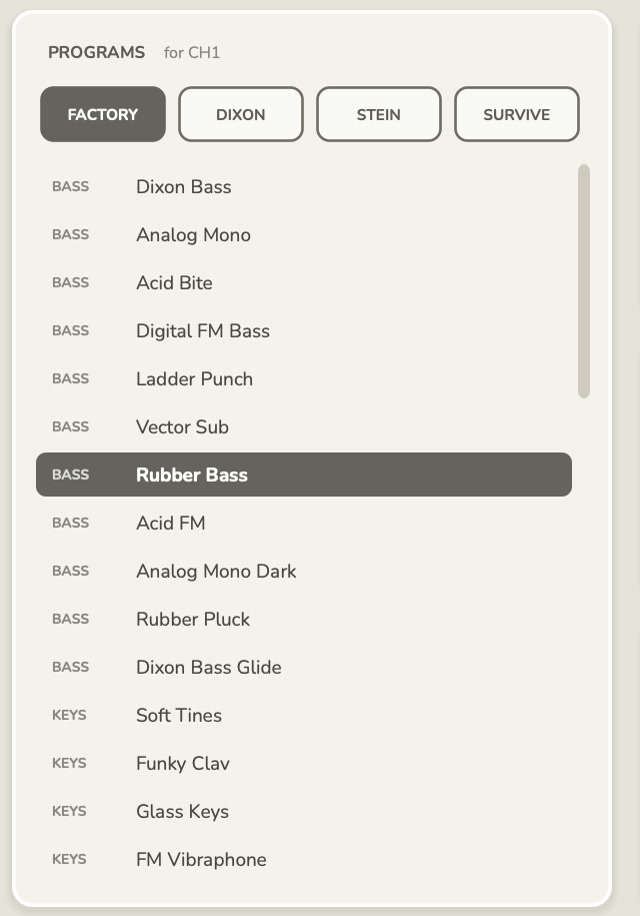
- Banks
- FACTORY, DIXON, STEIN, SURVIVE: groups of sounds. The last three come from our instruments of the same name.
- The list
- Click a sound and the picked channel plays it. Try it right away on the keyboard below.
- DRUMS
- When DRUMS is picked, this card shows the drum kit instead. There is nothing to choose: the kit follows the ERA.
ERA — which machine plays it
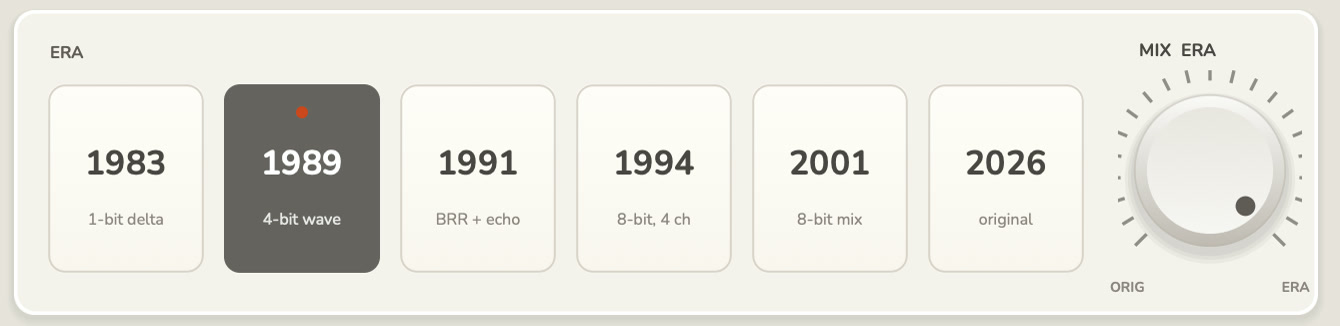
The heart of Mike. Each year is a kind of old sound chip, and the whole song goes through it: its bits, its sample rate, its limits. Pick a year and every channel, the drums too, sounds like that machine.
- 1983 · 1-bit delta
- The roughest: gritty, buzzy, lots of character.
- 1989 · 4-bit wave
- Tiny 4-bit waves. The classic handheld sound.
- 1991 · BRR + echo
- Soft, slightly muffled samples with the chip's own echo. Warm 16-bit console.
- 1994 · 8-bit, 4 ch
- 8-bit samples on four channels, voices left and right. Home computer tracker music.
- 2001 · 8-bit mix
- 8-bit samples mixed in software at a low rate. Handheld of the early 2000s.
- 2026 · original
- No chip: the sounds as they are, clean.
- MIX
- Blends the clean sound (ORIG, left) with the era (ERA, right). Halfway gives the chip colour without all its dirt. It does nothing on 2026.
BEHAVIOUR — how the channel plays
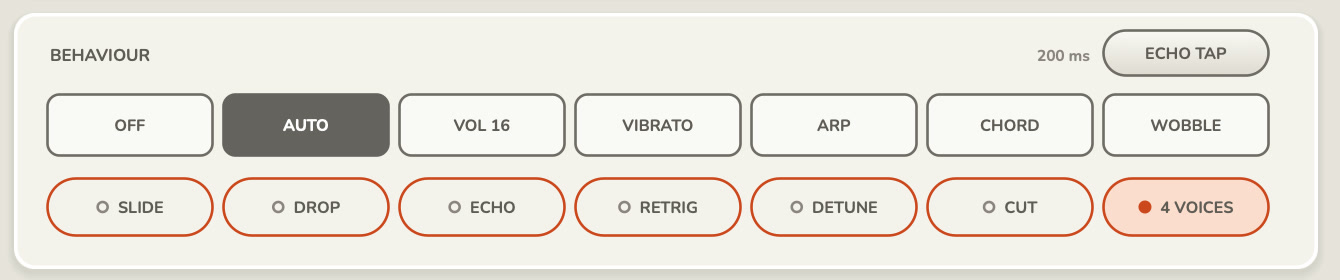
The old music programs did more than play a note: they moved it in tiny steps, 60 times a second. These buttons give the picked channel those habits. Each channel has its own.
Top row — the manner (one at a time):
- OFF
- Plain notes, nothing added.
- AUTO
- The manner that suits the chosen sound, picked for you.
- VOL 16
- The volume moves in 16 coarse steps, like a chip channel. Fades get that stepped sound.
- VIBRATO
- A stepped vibrato that comes in after a quarter of a second, for held lead notes.
- ARP
- Hold a chord and it plays as one fast rattling voice, low to high. The famous chip chord.
- CHORD
- One key plays a whole chip chord (note, fifth, octave) the same fast way.
- WOBBLE
- A small fast shimmer around the note, nice on bells and keys.
Bottom row — tricks (any number at once):
- SLIDE
- Each note glides in from the last one.
- DROP
- Each note starts an octave up and falls onto its pitch: the chip blip.
- ECHO
- Two quieter repeats of every note. ECHO TAP: tap the button in time to set how far apart they are (the time shows next to it).
- RETRIG
- A held note restarts 15 times a second: a roll.
- DETUNE
- Two voices slightly apart, beating: fatter.
- CUT
- Every note stops after 100 ms. Short, tight, plucky.
- 4 VOICES
- At most four voices sound at once, as on a real chip. A new note cuts the oldest, echoes first. Turn it off for long overlapping pads.
PLAYBACK — what it comes out of
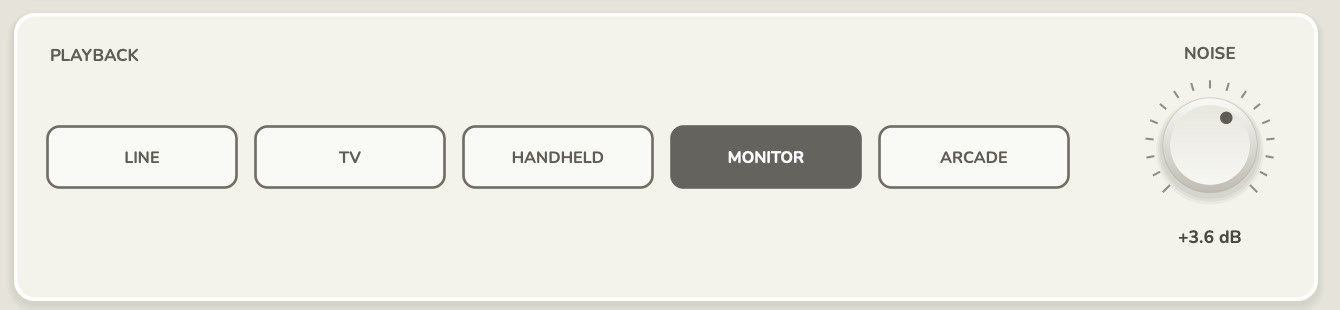
The speaker the whole song is heard through, with its own hum and hiss.
- LINE
- Straight from the audio jack: the full sound, only a faint hiss. The best choice for mixing and export.
- TV
- An old tube TV speaker: mono, boxy, no deep bass, no high top.
- HANDHELD
- A tiny one-inch speaker: no bass, loud mids, breaks up when pushed.
- MONITOR
- A home computer monitor's two small speakers close together.
- ARCADE
- A cabinet speaker in a wooden box, turned up loud, with its boom.
- NOISE
- How loud that hiss, buzz and hum are. All the way down for a clean result.
Keyboard

- Keys
- Click to play the picked channel. Your MIDI keyboard and the computer keyboard play it too.
- KEYS − +
- Moves the keyboard up or down an octave.
- VOLUME
- Only how loud you listen. It is not in the exported file.
- Drums
- With DRUMS picked, C is the kick, D the snare, F# the closed hat, A# the open hat (like any General MIDI kit).
Pattern editor
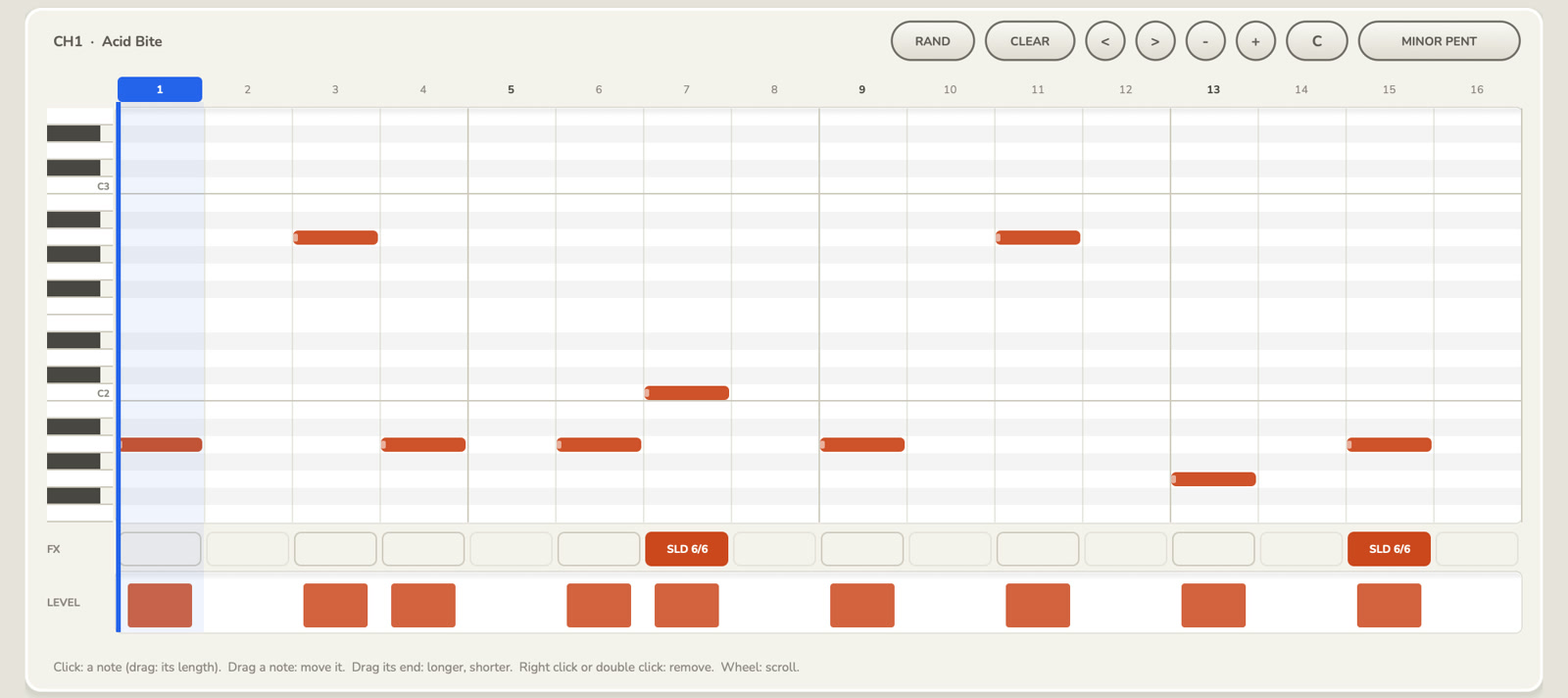
A pattern is 16 steps (one bar). The editor shows the picked channel in the pattern chosen in SONG.
- Write notes
- Click a note; drag while clicking to make it longer. Drag a note to move it, drag its end to change its length. Right-click or double-click removes it. The wheel scrolls up and down.
- RAND
- A new random line in the key and scale shown on the right. On DRUMS: a new beat. Press again until you like it.
- CLEAR
- Empties this channel in this pattern.
- < >
- Moves every note one step left or right.
- − +
- Moves every note a semitone down or up (with Shift: an octave).
- Key · scale
- For RAND only, so its lines fit your song. Your own notes can be anything.
- FX row
- A trick on one note only: SLD (slide), DRP (drop), ECH (echo), RTG (roll), DET (detune), CUT or ARP. Click the box under a note to step through them, right-click to clear. Drag it up or down to set how much (the amount shows in the box).
- LEVEL row
- How loud each note is. Click or drag across the bars: a few louder notes make a line groove.
SONG — patterns in order

The song is a row of places, each playing one pattern. The overview below shows where every channel has notes.
- Click a place
- Chooses it: the editor shows it and PLAY starts there.
- Drag up or down
- Changes which pattern that place plays, so a chorus can come back without copying it.
- Drag sideways
- Moves the place in the song. Right-click for more.
- + NEW
- A new empty pattern after the chosen one.
- COPY
- A copy of the chosen pattern after it, to change it a little. The easiest way to build a song.
- DELETE
- Takes the place out of the song. The pattern itself stays for later.
- S
- Sync: while the song plays, the editor follows the pattern playing.
Mixer and export
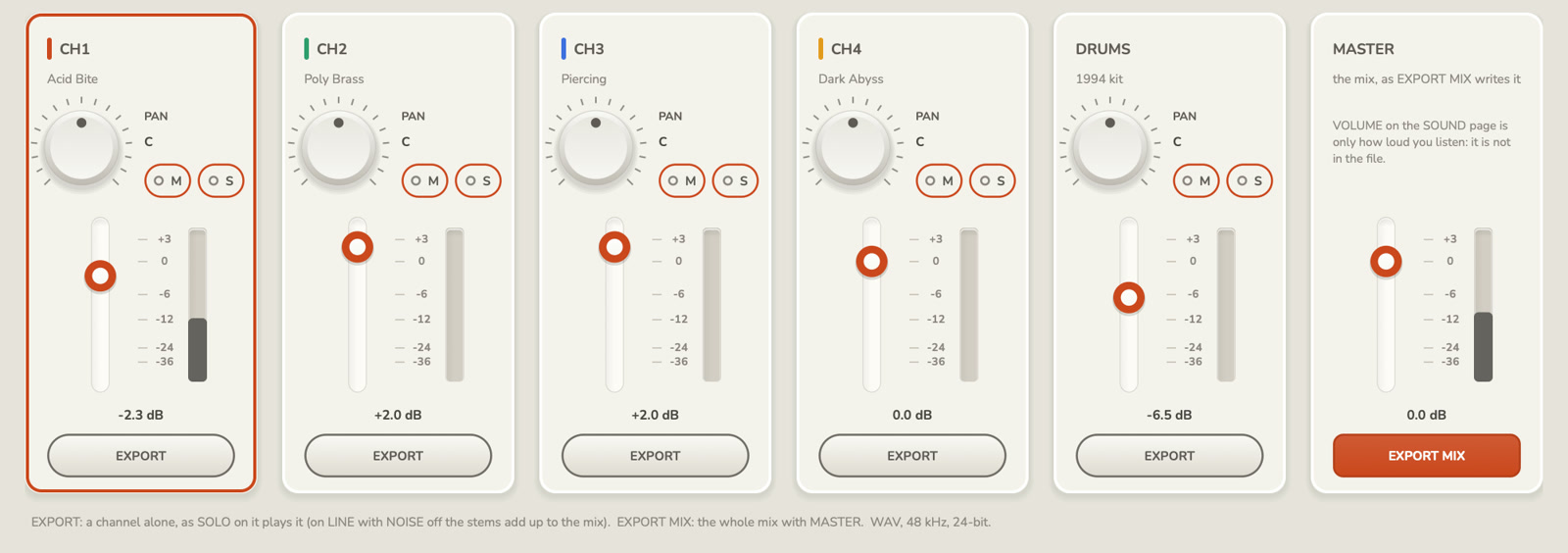
- PAN
- Left or right.
- M · S
- Mute this channel, or solo it (only the soloed ones play).
- Fader · meter
- The channel's level and how loud it plays right now.
- MASTER
- The level of the whole mix.
- EXPORT MIX
- The whole song as a WAV file (48 kHz, 24-bit), exactly as you hear it, ERA and PLAYBACK included.
- EXPORT
- One channel alone, as SOLO would play it. For mixing in your DAW. On LINE with NOISE down, the channel files add up to the full mix.
Want stems for a DAW? Choose PLAYBACK LINE, turn NOISE all the way down, then press EXPORT on each channel.
Recipes
Quick ways to get a familiar chip sound.
Handheld lead
- ERA 1989, PLAYBACK HANDHELD.
- BEHAVIOUR VIBRATO, trick DROP.
- Long notes in the editor so the vibrato has time to come in.
Chip chords
- Pick a pad or keys sound.
- BEHAVIOUR ARP and write chords, or CHORD and write single notes.
- Add ECHO and tap the time in.
Tracker bass
- ERA 1994, a bass sound.
- Tricks CUT for short notes, or SLIDE for a rubbery line.
- RAND in MINOR PENT, then fix the notes you don't like.
Modern, just a hint
- ERA 1991, MIX about halfway.
- PLAYBACK LINE, NOISE down.
- Turn 4 VOICES off on pads so long notes overlap.
Questions
- PLAY does nothing.
- Check that the channels are not muted (the dot in the strip, M in the mixer) and that some pattern has notes. Then check AUDIO / MIDI.
- Notes get cut off.
- That is 4 VOICES (or CUT). Turn it off for that channel.
- Different eras sound louder or softer.
- They are different machines. Adjust the faders or MASTER after you pick the era.
- My export hisses.
- Turn NOISE down or choose PLAYBACK LINE. VOLUME has no effect on the file.
- Can Mike run in my DAW?
- No, it is a standalone app. Export WAV files (the mix or each channel) and drag them in.
- The demo went silent.
- The 14 days are over. Your projects open unchanged in the full version.