
FetComp manual
A fast compressor for drums, vocals and bass. Here is what every knob and button does, in plain words.
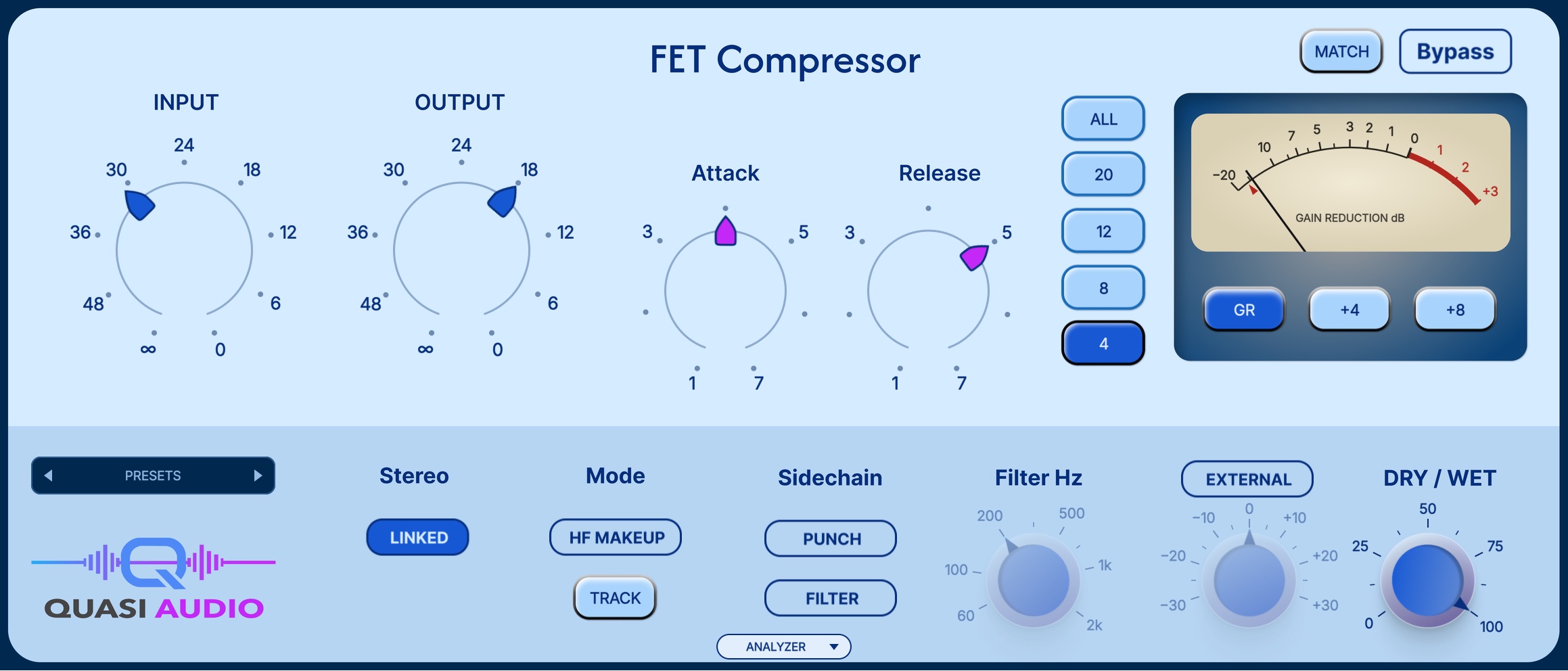
On top: INPUT and OUTPUT set the levels, Attack and Release set the speed, the ratio buttons set the strength and the meter shows what happens. Below: presets, stereo, the sidechain tools, DRY / WET and the ANALYZER drawer.
Quick start
- Put FetComp on a track and press play.
- Turn INPUT up until the needle moves to about −5 dB on loud moments.
- Turn OUTPUT until the track is about as loud as before.
- Try Attack and Release. 1 is slowest, 7 is fastest.
- Compare: switch MATCH on and click Bypass. You now hear the compression, not a volume change.
What a compressor does
A compressor turns loud moments down automatically. The song gets more even, quiet details come forward, and drums can hit harder. Gain reduction (GR) is how many dB it is turning the sound down right now. FetComp reacts very quickly, so it is great at grabbing sharp hits and adding energy.
INPUT and OUTPUT
This compressor has no threshold knob. You decide how much it works by how hard you drive it.
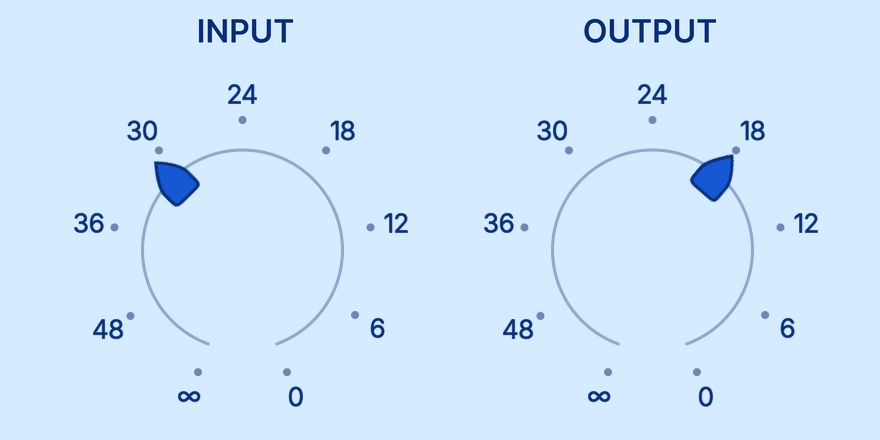
- INPUT
- How hard the sound hits the compressor. More INPUT means more compression and more colour. The numbers are the classic panel marks, not dB.
- OUTPUT
- The level after compression. Use it to bring the track back to its original loudness.
Attack and Release
Both knobs run from 1 (slowest) to 7 (fastest). Double-click any knob to return to its default.
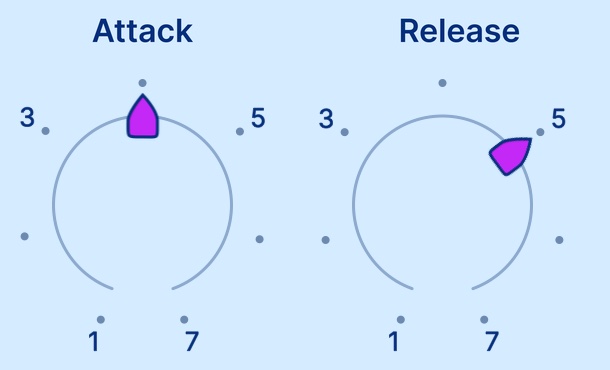
- Attack
- How quickly it grabs a loud sound. Slower (toward 1) lets the first click of a drum through, so it punches. Faster (toward 7) catches peaks and sounds denser.
- Release
- How quickly it lets go. Faster (toward 7) adds energy and can pump. Slower (toward 1) is smoother and more even.
Ratio buttons
How strongly loud sounds are turned down. Click one button at a time.
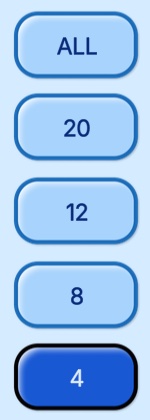
- 4 · 8 · 12 · 20
- 4 is gentle and good for vocals and bass. 8 is firmer. 12 and 20 act more like a limiter and hold peaks down.
- ALL
- The famous all-buttons-in mode. Aggressive, thick and a little distorted. Wonderful on drums and room mics, best blended with DRY / WET.
The meter
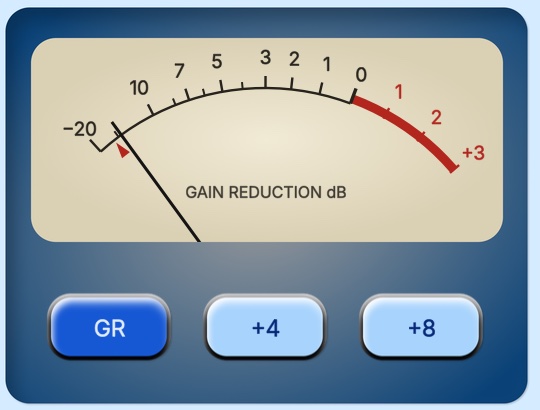
- GR
- The needle shows how many dB the compressor is turning the sound down.
- +4 · +8
- The needle shows the output level instead. +4 reads 0 VU at −18 dBFS, +8 at −14 dBFS.
- Meter face
- Click it to switch between the VU needle, the GR history and the transient scope.
Bypass and MATCH

- Bypass
- Switches compression off so you can compare. FetComp keeps the same delay, so your tracks stay in time.
- MATCH
- Loud always seems better, which makes comparing unfair. MATCH learns the level difference while you play and evens it out when Bypass is on. It never changes your processed sound or your export.
Presets
56 ready starting points, grouped by instrument: drums, bass, guitars, vocals, keys and synths, brass and strings, bus and mix, FX.

- ◀ ▶
- Previous and next preset.
- Name
- Click it for the full list and your own presets.
- Save · Load
- Save your settings as a preset or load one from a file. Show Presets Folder opens the place they are kept.
- *
- A star after the name means you have moved something since loading it.
Stereo and Mode

- LINKED
- On: left and right are compressed together, so the stereo picture stays still. Off (Unlinked): each side works alone, which sounds wider and livelier.
- HF MAKEUP
- Heavy compression can dull the sound. This adds a gentle lift above about 1.7 kHz that grows with the compression and does nothing when the compressor rests.
- TRACK
- For recording and monitoring. Lit: latency under 0.1 ms at 44.1 kHz and above, so singers and players feel no delay. Off (Mix): the full linear-phase path, about 1.8 ms at 48 kHz, for mixing. The tone is the same; single peaks can land slightly differently.
Sidechain: what the compressor listens to
The compressor decides by listening to a separate copy of the sound, the key. These controls change only that copy, so you shape how it reacts without EQ-ing your track.
- PUNCH
- Makes the compressor listen less to lows and more to highs. It grabs the snap and lets the body through.
- FILTER
- Switches on the low cut in the key, so a kick or bass stops pulling the whole mix down.
- Filter Hz
- How high that low cut goes, from 53 Hz to 2 kHz.
- EXTERNAL
- Lets another track control the compression, for example the kick ducking the bass. Route that track to the sidechain input in your DAW.
- Key level
- The knob under EXTERNAL: raises or lowers the key by up to ±35 dB, so a quiet key can still drive the compressor.
DRY / WET
- DRY / WET
- Blends the untouched sound with the compressed one. 100 is fully compressed. Around 30 to 60 gives parallel (New York) compression: big energy with natural dynamics.
ANALYZER

- ANALYZER
- Opens the drawer under the panel. It only watches: the sound is identical with it open or closed.
- GAIN REDUCTION HISTORY
- The red line is the gain reduction over time, with input and output peaks behind it. Below: the current, highest and average values.
- 5 s · 10 s · 20 s
- How much time the history shows.
- TRANSIENT 20 ms
- A close-up of the first 20 ms of a hit, with the rise time in milliseconds. After you change a setting, the previous curve stays as a ghost.
- HOLD
- Freezes the picture so you can study it.
Recipes
Drums that explode
- Press ALL, Attack around 3, Release 7.
- Turn INPUT up until it sounds too much.
- Bring DRY / WET down to about 40.
A steady vocal
- Ratio 4, Attack 3 to 5, Release around 5.
- Aim for 3 to 6 dB on the meter.
- Dull? Switch on HF MAKEUP.
Bass ducking under the kick
- Put FetComp on the bass and route the kick to its sidechain.
- Press EXTERNAL, ratio 8, Release 6.
- Set the amount with the key level knob.
Questions
- The needle does not move.
- The signal is too quiet for the compressor. Turn INPUT up.
- It got much louder or quieter.
- That is normal. Set OUTPUT, then compare with MATCH and Bypass.
- When should I use TRACK?
- While recording or playing live through the plug-in. Switch it off for mixing.
- EXTERNAL does nothing.
- No track reaches the sidechain input. Route one in your DAW, then raise the key level if needed.
- Is the ANALYZER using up my CPU?
- Only a little, for drawing. Close it if you are working at a very small buffer.